

/console/projects/[projectId] provides a comprehensive view of a single project with tabbed navigation for managing all project-related resources.
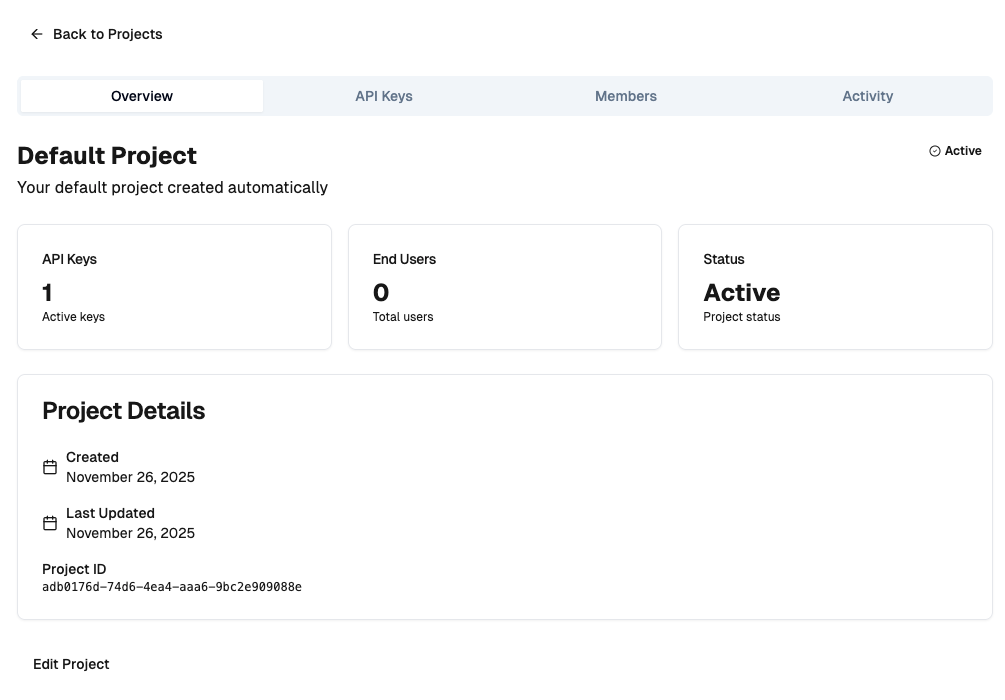
Accessing Project Details
Click on any project from the Projects list (/console/projects) to open its detailed view. The page URL includes the project UUID:
Tabbed Interface
The project details page organizes information into four main tabs:Overview Tab
The Overview tab displays project metadata and key statistics.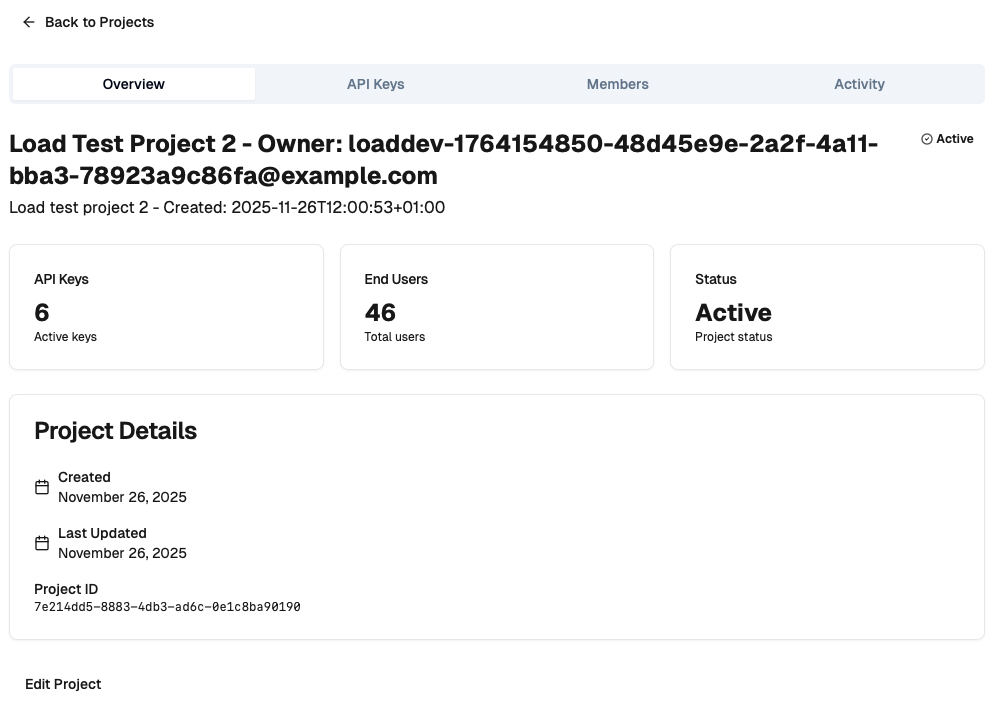
- Project name and description
- Created date and last updated timestamp
- Project status (Active/Inactive)
- Project UUID for reference
- API Keys: Total number of API keys generated for this project
- Members: Total end users registered through this project
- Generations: Total AI generations requested (if applicable)
- Status: Current project health indicator
API Keys Tab
Manage project API keys with full CRUD operations. (((REPLACE_THIS_WITH_IMAGE: project-api-keys-tab-management.png: Screenshot of API Keys tab with key list and generate button))) Features:- View API Keys: List all API keys with key prefix, name, and creation date
- Generate New Key: Create new API keys with optional names
- Copy Key: One-click copy to clipboard (full key shown only once at generation)
- Revoke Key: Delete API keys to prevent further use
- Last Used: Track when each key was last accessed
- Key Prefix: First 8 characters for identification (e.g.,
dk_abc123) - Name: Optional descriptive name for the key
- Created At: Key generation timestamp
- Last Used: Last API access timestamp
- Actions: Copy and delete options
- Click “Generate API Key” button
- Enter optional key name in dialog
- Click “Generate” to create key
- Copy the full key from the success dialog
- Store key securely (it won’t be shown again)
Members Tab
View and manage end users associated with this project. (((REPLACE_THIS_WITH_IMAGE: project-members-tab-filters.png: Screenshot of Members tab with user list and filters))) Features:- Member List: All end users who registered through this project
- Search: Filter members by email address
- Status Filter: Filter by active/inactive status
- Role Filter: Filter by user role
- Pagination: Navigate through large member lists
- Member Details: View individual member information
- Email: User’s registered email
- Full Name: Display name (if provided)
- Role: User role (typically “end_user”)
- Status: Active or inactive indicator
- Joined: Registration date
- Actions: View details, manage access (coming soon)
- All Members
- Active Only
- Inactive Only
- All Roles
- End User
- Developer (if applicable)
- 20 members per page (default)
- Previous/Next navigation
- Page indicator showing current page and total
Settings Tab
Configure project settings and manage project lifecycle.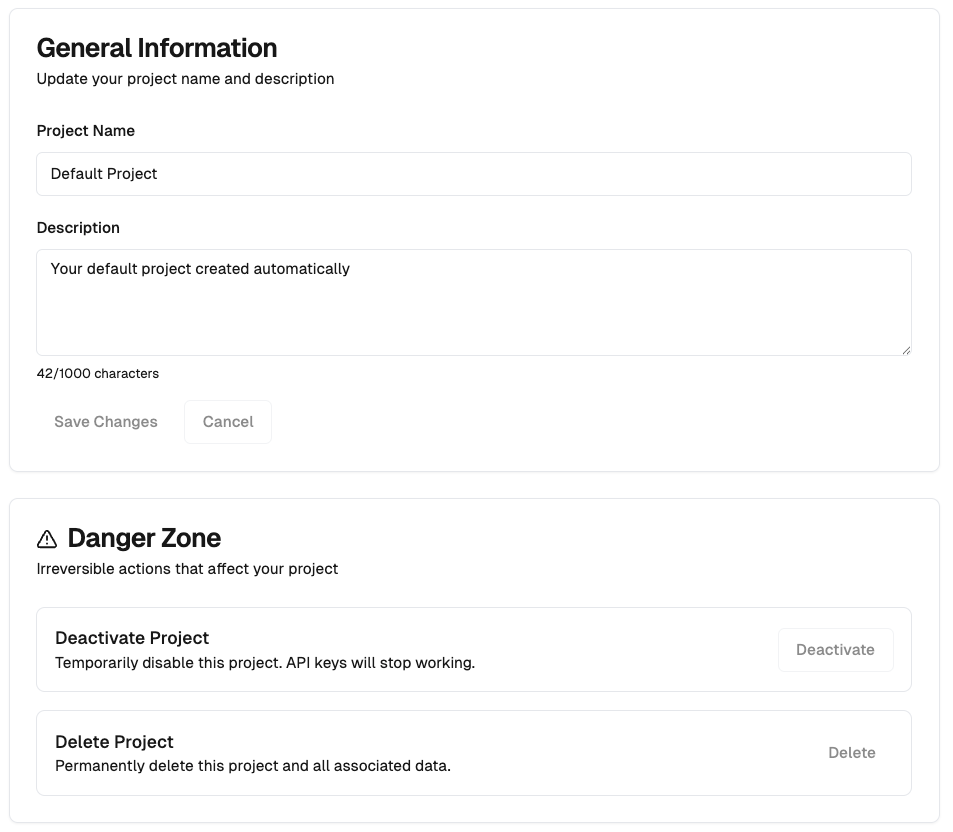
- Project Name: Update project display name
- Description: Modify project description
- Status: Toggle project active/inactive status
- Deactivate Project: Temporarily disable project (can be reactivated)
- Delete Project: Permanently remove project and all associated data
The Deactivate and Delete buttons are currently disabled while the feature is in development. This functionality will be enabled in a future release.
Payments Tab
Configure and monitor payment processing for your project. (((REPLACE_THIS_WITH_IMAGE: project-payments-tab-overview.png: Screenshot of Payments tab showing Stripe configuration status, mode toggle, and payment statistics))) Stripe Configuration Status: The Payments tab displays the current state of Stripe integration for your project:- Configured (Test Mode): Stripe test credentials are set up and ready for testing
- Configured (Live Mode): Production credentials are active
- Not Configured: No Stripe credentials have been added yet
Stripe credentials are stored per-project with separate test and live mode configurations. This allows you to test thoroughly before going live without affecting production settings.
- Test mode uses Stripe test API keys for development
- Live mode uses production API keys for real transactions
- Each mode has its own webhook secret for secure event processing
Subscriptions List:
View all subscriptions for your project with filtering options:
- Status Filter: active, trialing, past_due, cancelled, all
- Search: Filter by user email
- Pagination: Navigate large subscription lists
Transaction History:
Track all payment transactions with detailed information:
Quick Actions:
- Configure Stripe: Open Stripe configuration dialog
- View Webhook URLs: Copy webhook URLs for Stripe dashboard
- Test Payment: Create a test checkout session (test mode only)
- Open Stripe Dashboard: Link to Stripe’s project dashboard
- Click “Configure Stripe” button
- Select mode (Test or Live)
- Enter your Stripe API keys from Stripe Dashboard
- Enter your webhook signing secret
- Click “Validate & Save” to verify credentials
- Copy the webhook URL and add it to your Stripe dashboard
Project Statistics
The Overview tab displays real-time statistics fetched from the Cloud API: API Keys Count:- Active: Project is operational and accepting requests
- Inactive: Project is disabled (API keys won’t work)
- Error: Configuration or system issues detected
Data Loading
The project details page uses React Suspense for optimal loading:- Initial page load shows skeleton UI
- Tab switching is instant (data pre-loaded)
- API key generation shows loading dialog
- Member list pagination shows inline loading
Server Actions
The page uses several server actions for data fetching and mutations: Fetch Project:Security and Permissions
Developer-Scoped Access:- Developers can only access their own projects
- RBAC enforced via
X-Developer-Keyheader - Project ID validated against developer ownership
- Project details page requires
developerrole requireRole(['developer'])enforced in layout- Unauthorized users redirected to dashboard
- Full keys shown only once at generation
- Key prefixes displayed for identification
- Hashed keys stored in database (SHA256)
Navigation
Breadcrumb Trail:- Back to Projects list
- Jump to specific tab via URL hash
- Keyboard shortcuts (coming soon)
Best Practices
API Key Management:- Name keys descriptively when generating
- Rotate keys periodically for security
- Delete unused keys immediately
- Monitor “Last Used” timestamps
- Use separate keys for different environments
- Regularly review active members
- Use search to locate specific users quickly
- Monitor registration patterns for suspicious activity
- Keep member lists organized with filters
- Keep project name and description up-to-date
- Use deactivation to temporarily disable projects
- Back up important data before deletion
- Document configuration changes
Troubleshooting
Project Not Loading
If project details fail to load:- Verify project ID is valid UUID
- Check developer key has access to project
- Ensure project hasn’t been deleted
- Review browser console for API errors
API Keys Not Displaying
If API key list is empty:- Generate a new key to test
- Check API key endpoint permissions
- Verify project is active
- Review backend logs for errors
Members Not Showing
If members list is empty:- Verify end users have registered through project app
- Check project ID is correctly configured in app
- Ensure member registration events are processing
- Review projector logs for errors
Related Pages
Creating Projects
Learn how to create new projects
Managing API Keys
Complete guide to API key management
Viewing End Users
Manage end users across all projects
Project Settings
Configure project options